How to Send Your Digital Scans To Us
Follow the instructions below for your specific scanner system to connect with JD Dental Lab
Need Help?
Contact us at info@jdlab.us or call 551-226-9540
iTero Scanner
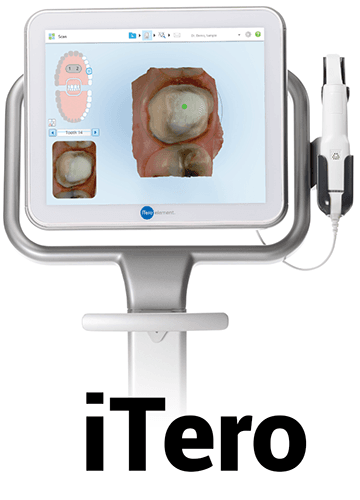
Option 1
- 1.Select "Find a Laboratory" on your iTero scanner
- 2.Connect with JD Dental Lab using our Lab ID: 663166
- 3.After connecting to us as a Lab, select "JD Dental Lab" on your scanner when sending files
Option 2
- 1.Call 800-577-8767
- 2.Select Option 1
- 3.Request that JD Dental Lab is added to your scanner. Identify our lab using our phone number 630-541-7666
- 4.After JD Dental Lab has been added, restart your scanner
- 5.After connecting to us as a Lab, select JD Dental Lab on your scanner when sending file
3Shape Scanner
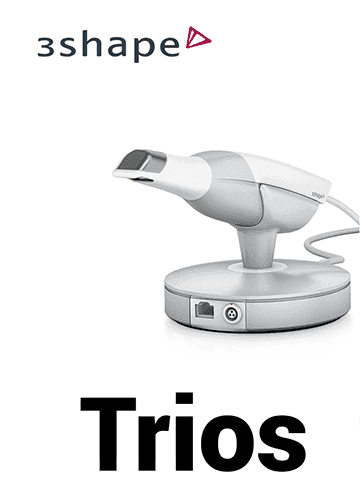
Step 1
Open Unite software → click Store.
Labs now can be seen and installed as Apps in the 3Shape Unite Store.
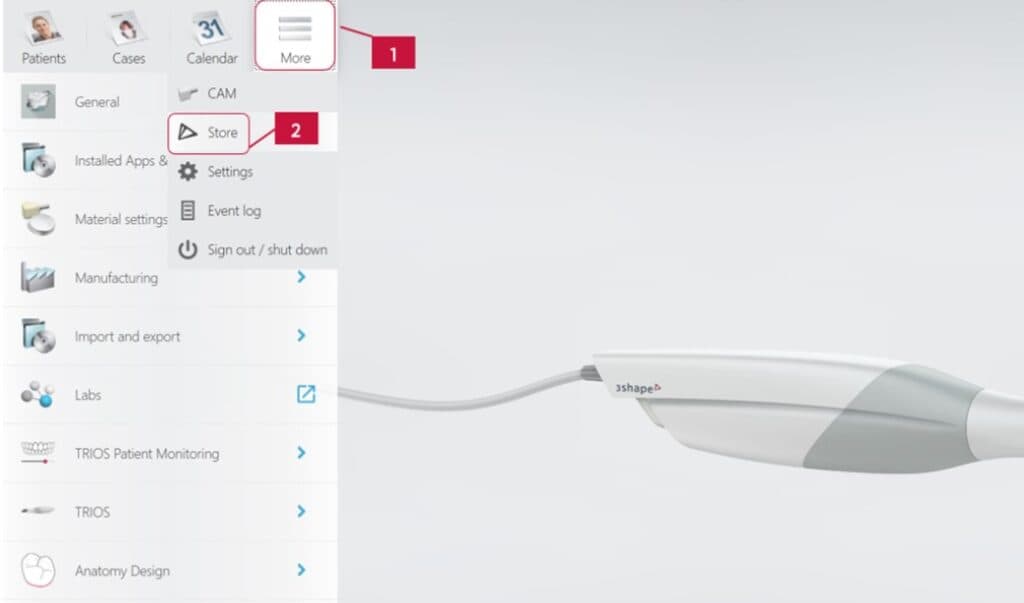
Step 2
Go to Labs → Type the lab name (JD Dental Lab) → click "Install"
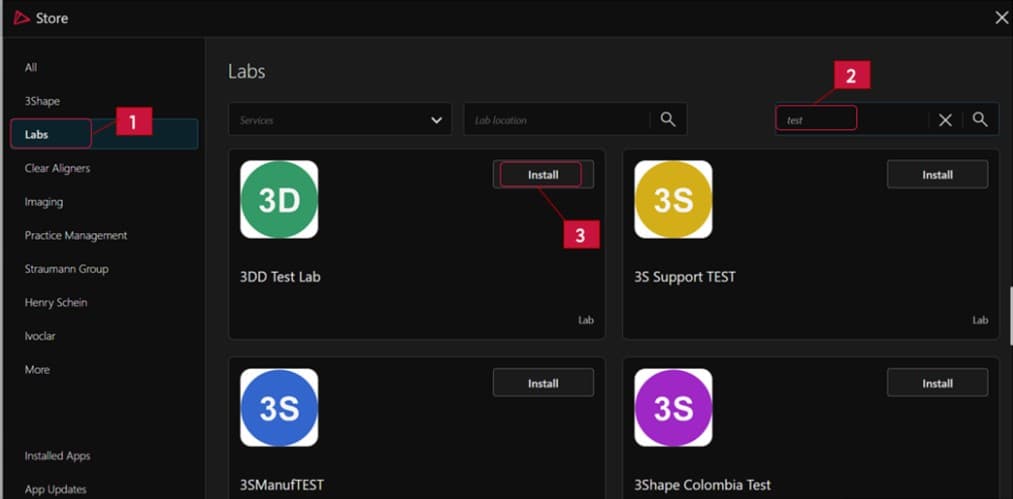
Step 3
In the Unite Store, you can connect to a lab by installing its app. Installing a lab initiates the connection request process; consequently the installation of the lab is dependent on the lab's acceptance of the connection request.
Step 4
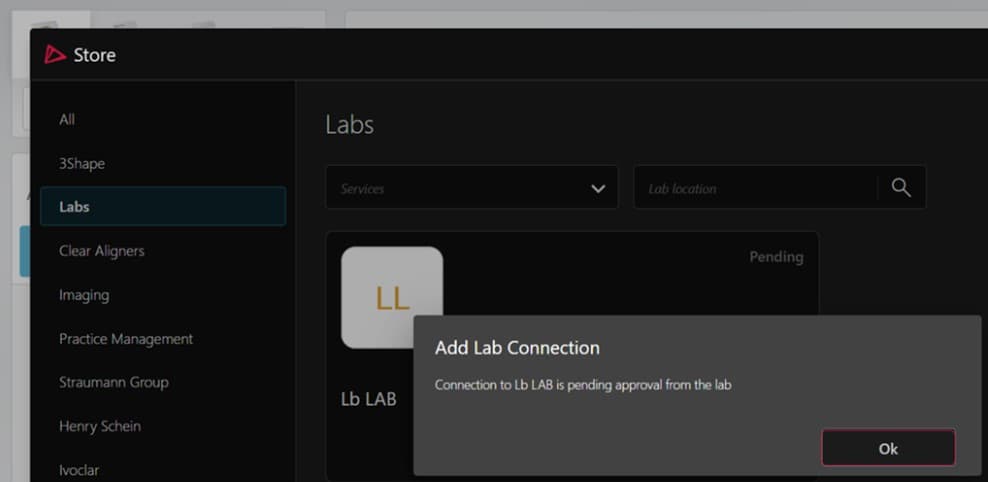
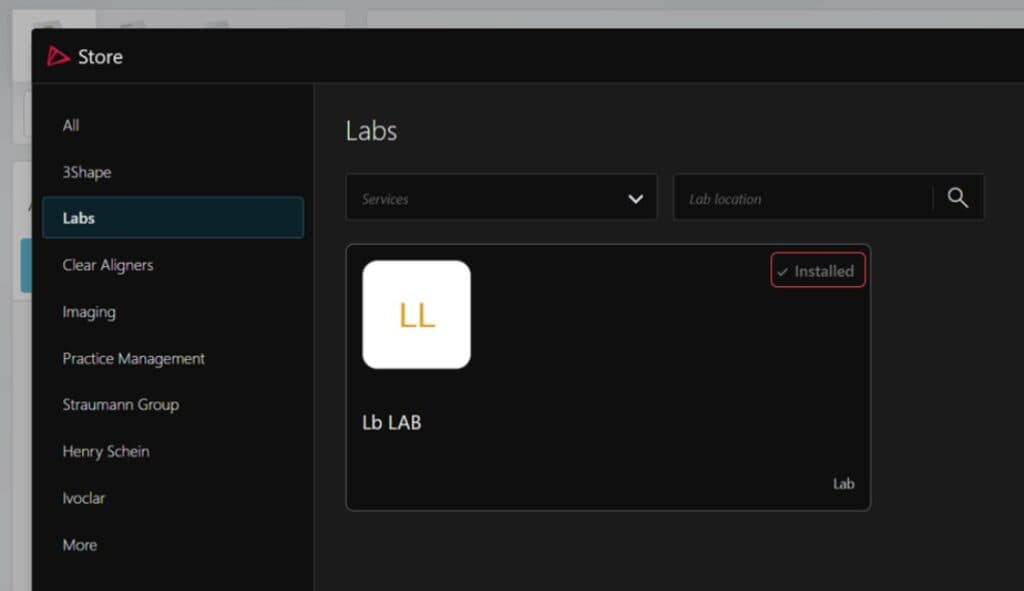
We will accept/reject incoming connection requests on the 3Shape Communicate Portal (not in the Store). The connection requests you have sent to the lab will be seen as "Pending" in the Unite Store. Once we accept the request, its status will be changed to "Installed" in the Store.
Sirona/Cerec Connect
- 1.
Log in to Cerec Connect at www.sirona-connect.com
- 2.
Select "My Cerec Connect," then "Edit Account"
- 3.
Under "My Account," select "My Favorite Laboratories"
- 4.
Type "JD Dental Lab" in the field for "Company Name," then "60515" for Zip Code
- 5.
Click "FIND"
- 6.
Check the box that says "JD Dental Lab"
- 7.
Click "ADD" to complete the registration
- 8.
When sending a case, add "Send to JD Dental Lab" in the notes
3M True Def Scanner
- 1.
Call 3M at 800-634-2449, extension 3 for digital OR extension 1 for general assistance
- 2.
Ask the 3M support team to be connected to JD Dental Lab in order to submit scans via the 3M True Def Scanner
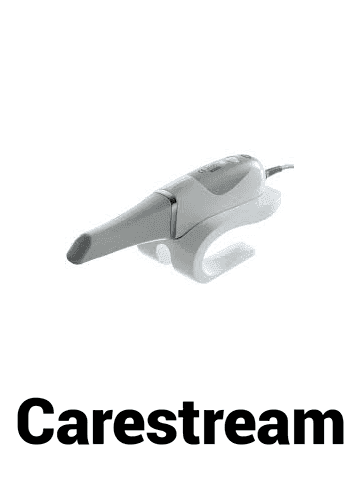
Carestream Connect
Option 1
- 1.Email JD Dental Lab at info@jdlab.us
Option 2
- 1.Visit Carestream Connect on your scanner
- 2.Search for JD Dental Lab
- 3.Add JD Dental Lab
- 4.Select JD Dental Lab when submitting scans or raw .STL files
- 5.Email JD Dental Lab at info@jdlab.us
Planmeca Scanner
- 1.
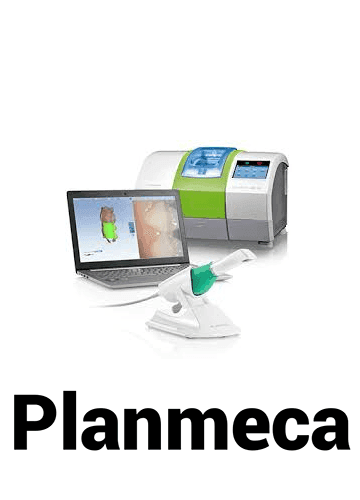
Select "Find a Lab" option on your scanner
- 2.
Search for JD Dental Lab
- 3.
Add JD Dental Lab
- 4.
Select JD Dental Lab when submitting scans
Medit Scanner
- 1.
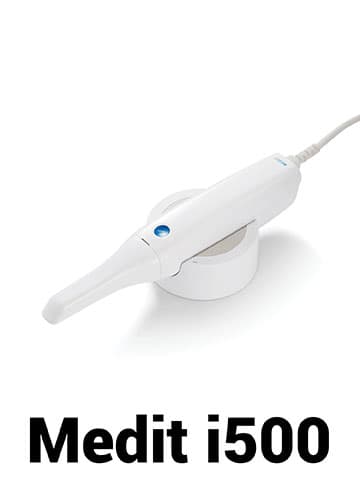
Log into www.meditlink.com with the administrator account
- 2.
Go to "Partners" on the left pane
- 3.
Search for "JD Dental Lab" and click the "Request Partnership" button
- 4.
You'll see that the lab has been added to the "My Partner List" with the status reflected as "Partnership Pending"
Still Have Questions?
Our technical support team is available 24/7 to help you set up your scanner connection